Stellium Visualization Guide
Beautiful astrological charts with zero configuration, infinite customization.
Stellium’s visualization system transforms your calculated charts into professional-quality SVG graphics. Whether you need a quick chart for analysis or a publication-ready visualization with custom styling, the fluent API makes it effortless.
See the HTML full theme and palette reference overview rendered here.
Theme Gallery - Visual showcase of all themes
Palette Gallery - Visual showcase of all palettes
Table of Contents
Quick Start
Your First Chart (2 Lines)
from stellium import ChartBuilder

chart = ChartBuilder.from_notable("Albert Einstein").calculate()
chart.draw("einstein.svg").save()
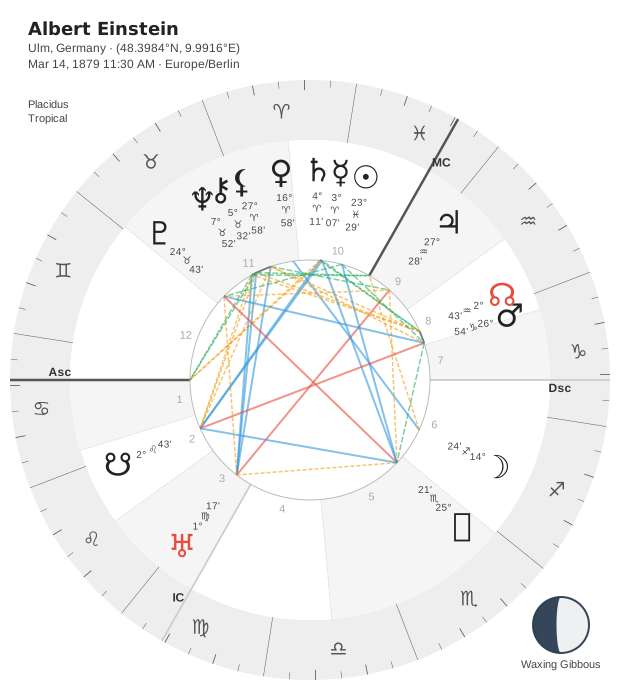
That’s it! You now have a beautiful natal chart saved as einstein.svg.
Using Presets
Presets give you instant professional layouts:
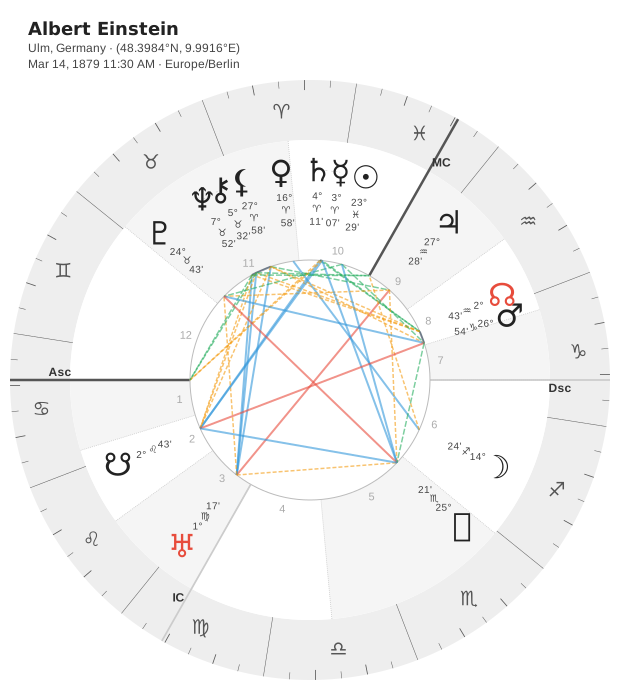
# Minimal - just the core chart
chart.draw("minimal.svg").preset_minimal().save()

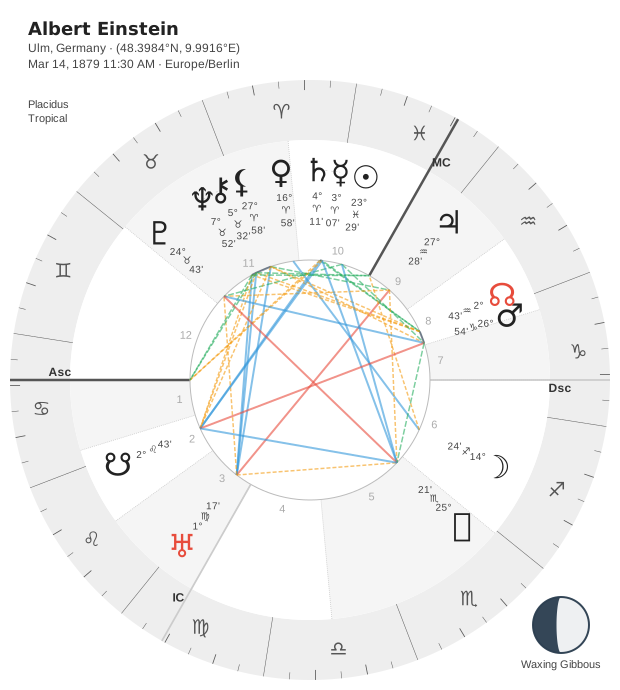
# Standard - chart with moon phase in center
chart.draw("standard.svg").preset_standard().save()

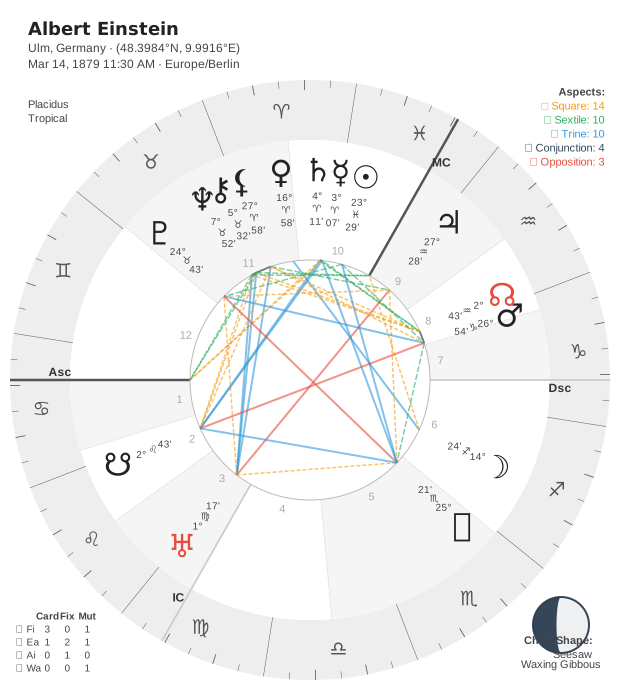
# Detailed - full chart with info boxes in all corners
chart.draw("detailed.svg").preset_detailed().save()
Adding a Theme
Themes control the overall visual style:
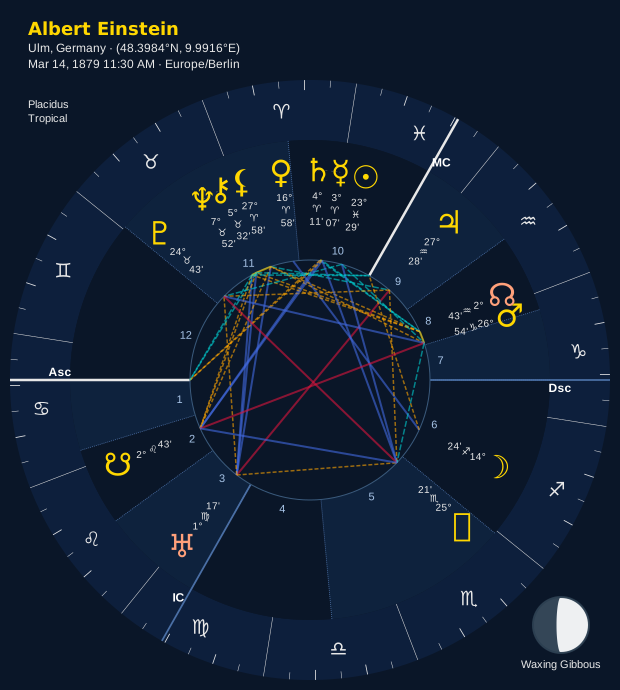
# Elegant night sky
chart.draw("midnight.svg").with_theme("midnight").save()

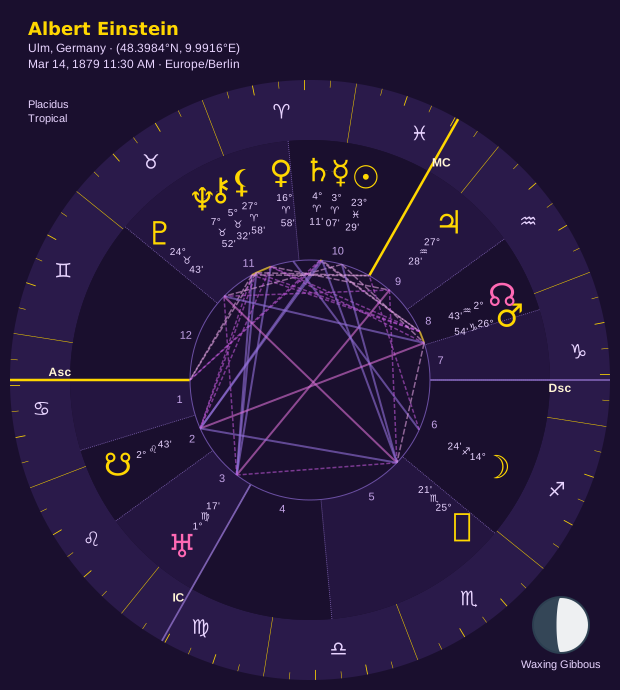
# Cosmic purple galaxy
chart.draw("celestial.svg").with_theme("celestial").save()

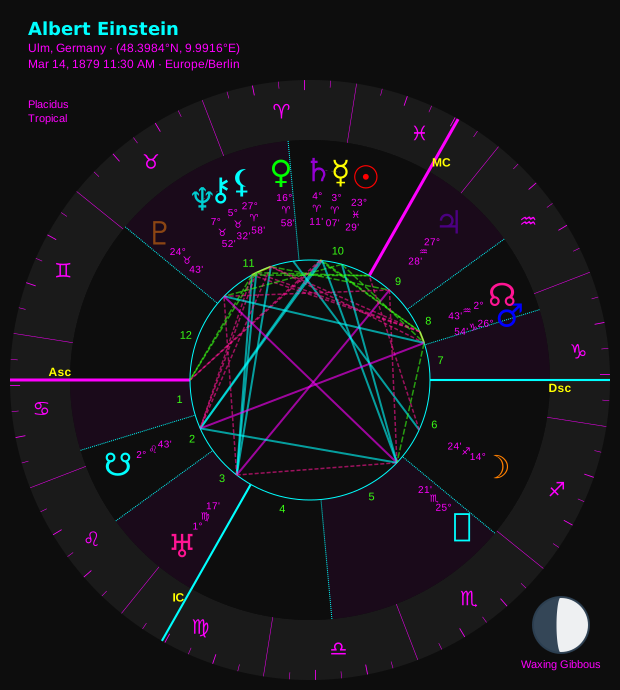
# Bold cyberpunk
chart.draw("neon.svg").with_theme("neon").save()
Custom Configuration
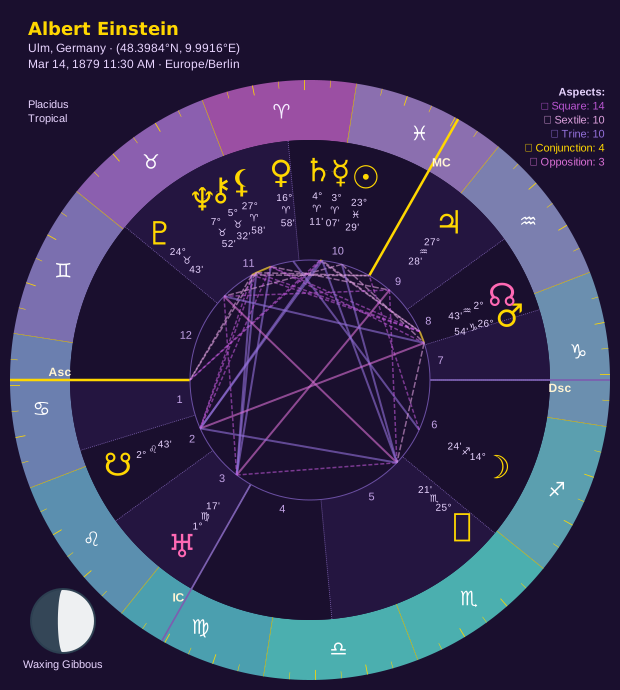
The fluent API makes customization discoverable through autocomplete:
(
chart.draw("custom.svg")
    .with_theme("celestial")
    .with_zodiac_palette("rainbow_celestial")
    .with_moon_phase(position="bottom-left", show_label=True)
    .with_chart_info(position="top-left")
    .with_aspect_counts(position="top-right")
    .save()
)
Tip: Type chart.draw("chart.svg"). in your IDE and let autocomplete show you all available options!
The Fluent API
The visualization API is built around method chaining for maximum discoverability and readability.
Basic Methods
with_filename(filename: str)
Set the output filename (can also be set in .draw() call):
chart.draw().with_filename("my_chart.svg").save()
# Same as:
chart.draw("my_chart.svg").save()
with_size(size: int)
Set the chart size in pixels (default: 600):
chart.draw("large.svg").with_size(800).save()
chart.draw("small.svg").with_size(400).save()
Note: Size is for the square chart canvas. Extended canvas modes add extra space.
Theme and Palette Methods
with_theme(theme: str)
Set the overall visual theme:
chart.draw().with_theme("midnight").save()
Available themes:
classic- Clean white background (default)dark- Dark gray backgroundmidnight- Deep navy, elegant night skycelestial- Deep purple galaxyneon- Black background with electric colorssepia- Aged paper vintagepastel- Soft muted colorsPlus scientific palettes:
viridis,plasma,inferno,magma,cividis,turbo
See Themes for detailed descriptions and recommended combinations.
with_zodiac_palette(palette: str)
Set the zodiac wheel color palette:
chart.draw().with_zodiac_palette("rainbow").save()
Available palettes:
grey- Monochrome (printer-friendly)rainbow- Classic spectrumelemental- Grouped by element (Fire/Earth/Air/Water)cardinality- Grouped by modality (Cardinal/Fixed/Mutable)Plus theme-specific variants and scientific palettes
See Color Palettes for the complete list.
with_aspect_palette(palette: str)
Set the aspect line color palette:
chart.draw().with_aspect_palette("plasma").save()
Common options: classic, dark, blues, plasma, viridis
with_planet_glyph_palette(palette: str)
Set the planet glyph color palette:
chart.draw().with_planet_glyph_palette("element").save()
Options:
default- Uniform color from themeelement- Colored by planetary elementsign_ruler- Colored by sign rulershipplanet_type- Colored by planet type (personal/social/transpersonal)luminaries- Sun and Moon highlightedrainbow- Full spectrumchakra- Chakra color associationsPlus scientific palettes:
viridis,plasma, etc.
with_adaptive_colors(sign_info: bool = True)
Enable adaptive coloring for sign glyphs in planet info stacks:
chart.draw().with_adaptive_colors(sign_info=True).save()
Note: The large zodiac wheel glyphs are ALWAYS adaptively colored for accessibility (WCAG AA compliant). This setting only controls the tiny sign glyphs next to planet positions.
Corner Element Methods
You can add informational boxes in any corner of the chart:
with_chart_info(position: str = "top-left", fields: list[str] | None = None)
Add chart metadata:
chart.draw().with_chart_info(position="top-left").save()

# Customize which fields to show
chart.draw().with_chart_info(
    position="top-right",
    fields=["name", "location", "datetime"]
).save()
Available fields: name, location, datetime, timezone, coordinates, house_system
with_aspect_counts(position: str = "top-right")
Add aspect counts summary:
chart.draw().with_aspect_counts(position="top-right").save()
Shows a breakdown of aspect types (e.g., “5 Trines, 3 Squares, 2 Oppositions”).
with_element_modality_table(position: str = "bottom-left")
Add element × modality cross-table:
chart.draw().with_element_modality_table(position="bottom-left").save()
Shows planetary distribution across Fire/Earth/Air/Water and Cardinal/Fixed/Mutable.
with_chart_shape(position: str = "bottom-right")
Add chart shape detection:
chart.draw().with_chart_shape(position="bottom-right").save()
Identifies patterns like “Bucket”, “Bowl”, “Locomotive”, etc.
Corner positions: top-left, top-right, bottom-left, bottom-right
Moon Phase Methods
with_moon_phase(position: str = "center", show_label: bool = False, size: int | None = None, label_size: str | None = None)
Configure moon phase display:
# Moon in center (default)
chart.draw().with_moon_phase(position="center").save()

# Moon in corner with label
chart.draw().with_moon_phase(position="top-left", show_label=True).save()

# Custom size
chart.draw().with_moon_phase(position="center", size=80).save()
Positions: center, top-left, top-right, bottom-left, bottom-right
Auto-sizing:
Center position: 60px radius (default)
Corner positions: 32px radius (default)
without_moon_phase()
Disable moon phase display:
chart.draw().without_moon_phase().save()
Presets
Presets provide instant professional layouts. You can still customize after applying a preset!
preset_minimal()
Just the core chart - no decorations:
chart.draw().preset_minimal().save()
Includes:
Zodiac wheel
House cusps
Planet positions
Aspects
Excludes: Moon phase, corner elements
Best for: Quick analysis, clean exports, academic use
preset_standard()
Core chart with moon phase in center:
chart.draw().preset_standard().save()
Includes:
Everything in minimal
Moon phase (center position)
Best for: General use, personal charts, default output
preset_detailed()
Full chart with info boxes in all corners:
chart.draw().preset_detailed().save()
Includes:
Everything in standard
Chart info (top-left)
Aspect counts (top-right)
Element/modality table (bottom-left)
Chart shape (bottom-right)
Best for: Professional readings, comprehensive analysis, teaching
Note: Automatically adds padding when >2 corners are occupied for better readability.
preset_synastry()
Optimized for relationship comparison charts:
comparison.draw().preset_synastry().save()
Includes:
Moon phase (top-left, with label)
Chart info (top-right)
Aspect counts (bottom-right)
Best for: Synastry, transits, progressions
Combining Presets with Customization
Presets are just configuration shortcuts - you can override anything:
# Start with detailed preset, then customize theme
chart.draw() \
    .preset_detailed() \
    .with_theme("midnight") \
    .with_zodiac_palette("rainbow_midnight") \
    .save()

# Start with standard, add custom corner elements
chart.draw() \
    .preset_standard() \
    .with_aspect_counts(position="top-right") \
    .save()
Themes
Themes control the overall visual style, including background color, text colors, line weights, and default palettes.
Classic Themes
Classic (default)
Background: Clean white
Style: Professional, traditional
Best for: General use, printing, tutorials
Default palette: Grey zodiac (printer-friendly)
chart.draw().with_theme("classic").save()
Recommended combinations:
classic+grey- Printer-friendly monochromeclassic+rainbow- Friendly, approachable first chartclassic+elemental- Educational, element-focused
Dark
Background: Dark gray (#2C2C2C)
Style: Modern, reduced eye strain
Best for: Dark mode, screen viewing, accessibility
Default palette: Grey zodiac
chart.draw().with_theme("dark").save()
Recommended combinations:
dark+grey- Clean dark mode monochromedark+rainbow- Vibrant on dark backgrounddark+viridis- Scientific, colorblind-friendly
Specialty Themes
Midnight
Background: Deep navy (#0A1628)
Style: Elegant night sky, gold accents
Best for: Beautiful presentation, professional readings
Default palette: Rainbow Midnight (coordinated)
chart.draw().with_theme("midnight").save()
The Perfect Chart: Midnight + Rainbow Midnight feels like actual stargazing. Deep navy background with perfectly coordinated zodiac colors and gold planet glyphs. Sophisticated without being pretentious.
Recommended combinations:
midnight+rainbow_midnight- THE PERFECT CHART (night sky elegance)midnight+grey- Subtle elegance
Celestial
Background: Deep purple (#1A0F2E)
Style: Cosmic, galaxy aesthetic
Best for: Mystical presentations, spiritual work
Default palette: Rainbow Celestial (coordinated)
chart.draw().with_theme("celestial").save()
Cosmic Consciousness: Celestial + Rainbow Celestial creates a mystical galaxy vibe without being cheesy. Deep purple background with perfectly matched zodiac purples and cosmic pink/purple planet glyphs.
Recommended combinations:
celestial+rainbow_celestial- Mystical galaxy (cosmic vibes)celestial+magma- Purple-to-pink volcanic gradient
Neon
Background: Pure black (#000000)
Style: Bold, cyberpunk, high contrast
Best for: Eye-catching presentations, modern aesthetic
Default palette: Rainbow Neon (coordinated)
chart.draw().with_theme("neon").save()
The Bold One: Neon + Rainbow Neon is unapologetically LOUD and FUN. Electric saturated colors on pure black. Perfect for when you want your chart to POP.
Recommended combinations:
neon+rainbow_neon- MAXIMUM IMPACT (cyberpunk energy)neon+turbo- Full spectrum rainbow
Sepia
Background: Aged paper (#F4ECD8)
Style: Vintage, antique book aesthetic
Best for: Historical charts, vintage presentations
Default palette: Grey zodiac
chart.draw().with_theme("sepia").save()
Recommended combinations:
sepia+grey- Classic vintage booksepia+elemental- Warm, traditional
Pastel
Background: Soft cream (#FFF8F0)
Style: Gentle, muted, calming
Best for: Soft presentations, printed materials
Default palette: Grey zodiac
chart.draw().with_theme("pastel").save()
Recommended combinations:
pastel+grey- Gentle monochromepastel+rainbow- Soft spectrum
Scientific Themes
These themes use perceptually uniform color scales from scientific visualization:
Viridis
Style: Yellow-green-blue gradient
Accessibility: Colorblind-friendly
Best for: Data visualization, accessibility
chart.draw().with_theme("viridis").save()
Plasma
Style: Blue-purple-pink-yellow gradient
Accessibility: Colorblind-friendly
Best for: Beautiful gradients, presentations
chart.draw().with_theme("plasma").save()
Inferno
Style: Black-purple-orange-yellow gradient
Accessibility: Colorblind-friendly
Best for: Warm aesthetic, data viz
chart.draw().with_theme("inferno").save()
Magma
Style: Black-purple-pink-yellow gradient
Accessibility: Colorblind-friendly
Best for: Mystical presentations (Inferno’s prettier sibling!)
chart.draw().with_theme("magma").save()
Cividis
Style: Blue-yellow gradient
Accessibility: Optimized for ALL types of colorblindness
Best for: Maximum accessibility
chart.draw().with_theme("cividis").save()
Turbo
Style: Full spectrum rainbow (improved)
Accessibility: Google’s improved rainbow palette
Best for: Maximum color range
chart.draw().with_theme("turbo").save()
Color Palettes
Color palettes control specific visual elements. Each theme has sensible defaults, but you can mix and match freely.
Zodiac Wheel Palettes
The zodiac wheel is the outer ring showing the 12 signs.
Grey (monochrome)
chart.draw().with_zodiac_palette("grey").save()
Uniform neutral gray
Perfect for: Printing, photocopying, professional minimalism
Accessibility: High contrast
Rainbow (classic spectrum)
chart.draw().with_zodiac_palette("rainbow").save()
Traditional spectrum colors
Perfect for: Learning, general use, friendly approach
Accessibility: Good contrast with adaptive glyphs
Elemental (grouped by element)
chart.draw().with_zodiac_palette("elemental").save()
Fire signs: Red/orange
Earth signs: Green/brown
Air signs: Yellow/light blue
Water signs: Blue/purple
Perfect for: Teaching elements, traditional astrology
Cardinality (grouped by modality)
chart.draw().with_zodiac_palette("cardinality").save()
Cardinal signs: Red shades
Fixed signs: Blue shades
Mutable signs: Green shades
Perfect for: Teaching modalities, pattern recognition
Theme-Coordinated Palettes
These palettes are designed to match specific themes:
Rainbow Midnight (for Midnight theme)
chart.draw().with_theme("midnight").with_zodiac_palette("rainbow_midnight").save()
Deep, rich colors coordinated with navy background
THE PERFECT CHART - feels like stargazing
Rainbow Celestial (for Celestial theme)
chart.draw().with_theme("celestial").with_zodiac_palette("rainbow_celestial").save()
Cosmic purples and pinks
Galaxy aesthetic without being cheesy
Rainbow Neon (for Neon theme)
chart.draw().with_theme("neon").with_zodiac_palette("rainbow_neon").save()
Electric saturated colors
Maximum impact cyberpunk
Scientific Palettes
All scientific palettes are available for zodiac wheels:
viridis- Yellow-green-blue (colorblind-friendly)plasma- Blue-purple-pink-yellowinferno- Black-purple-orange-yellowmagma- Black-purple-pink-yellow (mystical!)cividis- Blue-yellow (maximum accessibility)turbo- Full spectrum improved rainbow
chart.draw().with_zodiac_palette("magma").save()
Tip: Scientific palettes work great with the classic or dark themes for a modern data visualization aesthetic.
Aspect Line Palettes
Control the color of aspect lines connecting planets:
chart.draw().with_aspect_palette("plasma").save()
Options: classic, dark, blues, greens, purples, plus all scientific palettes.
Note: Most themes use aspect-specific colors (red for squares, blue for trines, etc.) which override the palette. The palette mainly affects minor/harmonic aspects.
Planet Glyph Palettes
Control the color of planet symbols:
chart.draw().with_planet_glyph_palette("element").save()
Options:
default- Theme’s default colorelement- Mars/Sun = fire (red), Venus/Moon = water (blue), etc.sign_ruler- Colored by sign rulershipplanet_type- Personal (red), Social (blue), Transpersonal (purple)luminaries- Sun/Moon highlighted, others neutralrainbow- Each planet gets spectrum colorchakra- Chakra associationsPlus all scientific palettes
Corner Elements
Corner elements add contextual information without cluttering the chart.
Auto-Padding
When more than 2 corners are occupied, Stellium automatically adds subtle padding to prevent overlap and improve readability.
# Auto-padding kicks in here (3 corners)
chart.draw() \
    .with_chart_info(position="top-left") \
    .with_aspect_counts(position="top-right") \
    .with_element_modality_table(position="bottom-left") \
    .save()
Positioning
All corner elements accept these positions:
top-lefttop-rightbottom-leftbottom-right
Tip: Avoid placing more than one element in the same corner - the last one will override.
Chart Info Fields
Customize which fields appear in the chart info box:
chart.draw().with_chart_info(
    position="top-left",
    fields=["name", "location", "datetime"]  # Exclude timezone, coordinates
).save()
Available fields:
name- Person’s name (if available)location- City, State/Countrydatetime- Date and time of birthtimezone- Timezone (e.g., “PST”, “UTC-8”)coordinates- Latitude/Longitudehouse_system- House system used (e.g., “Placidus”)
Default: All fields except house_system
Moon Phase Display
The moon phase visualization shows accurate lunar illumination with a curved terminator.
Positions
Center (default)
chart.draw().with_moon_phase(position="center").save()
Replaces the center of the chart
Larger size (60px radius default)
Most prominent display
Corners
chart.draw().with_moon_phase(position="top-left", show_label=True).save()
Smaller size (32px radius default)
Labels appear ABOVE the moon for top corners, BELOW for bottom corners
Saves space for other elements
Labels
Show the phase name (e.g., “Waxing Crescent”, “Full Moon”):
chart.draw().with_moon_phase(
    position="center",
    show_label=True
).save()
Custom Sizing
Override the default sizes:
chart.draw().with_moon_phase(
    position="center",
    size=80,  # Larger moon
    label_size="16px"  # Larger label
).save()
Recommended sizes:
Center: 60-80px
Corners: 25-40px
Advanced Customization
Combining Everything
The fluent API lets you stack configuration for complete control:
from datetime import datetime
from stellium import ChartBuilder, Native

native = Native(datetime(1990, 5, 15, 14, 30), "Los Angeles, CA")
chart = ChartBuilder.from_native(native).calculate()

chart.draw("comprehensive.svg") \
    .with_size(800) \
    .with_theme("midnight") \
    .with_zodiac_palette("rainbow_midnight") \
    .with_aspect_palette("blues") \
    .with_planet_glyph_palette("element") \
    .with_moon_phase(position="center", show_label=True, size=70) \
    .with_chart_info(position="top-left", fields=["name", "location", "datetime"]) \
    .with_aspect_counts(position="top-right") \
    .with_element_modality_table(position="bottom-left") \
    .with_chart_shape(position="bottom-right") \
    .save()
Backwards Compatibility
The old draw_chart() function still works if you prefer functional style:
from stellium.visualization import draw_chart

draw_chart(
    chart,
    filename="old_style.svg",
    theme="midnight",
    moon_phase=True,
    chart_info=True
)
Recommendation: Use the new .draw() fluent API for better discoverability and readability.
Additional Tables (Advanced)
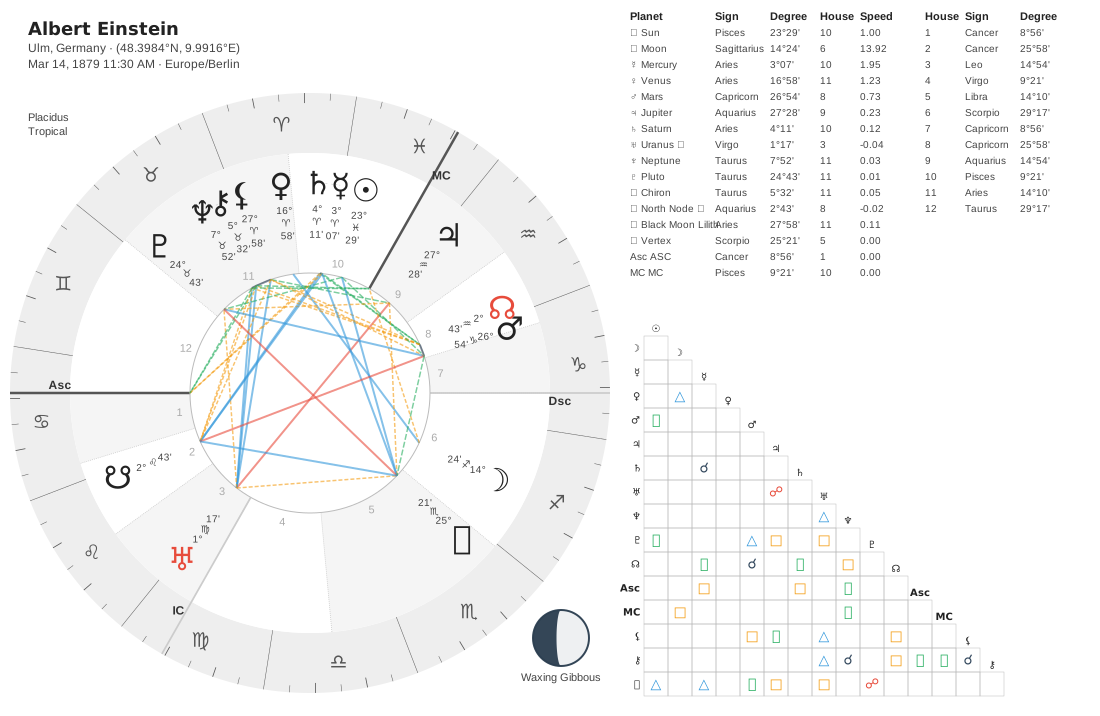
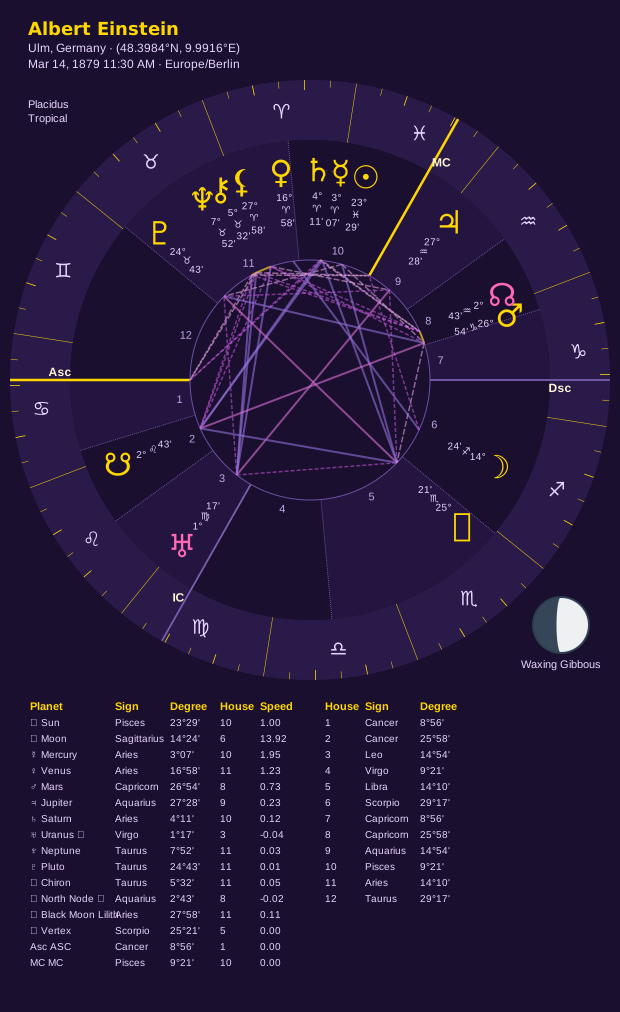
You can also add additional tables to see planetary positions, house cusps, and the aspectarian chart alongside the chart wheel. These can be configured to be to the left, right, or below the main wheel. You can configure the image to only show some of the additional tables as well (all are enabled by default).
The canvas extends by 450px (tables left or right) or 400px (tables below). All tables automatically adapt to your chosen theme.
# Default: Tables to the right of the chart wheel
chart.draw("extended_right.svg").with_tables().save()

# Tables below
chart.draw("extended_below.svg").with_theme("midnight").with_tables("below").save()

# Positions table only (no aspectarian)
(
    chart.draw("extended_no_positions.svg")
    .with_theme("celestial")
    .with_tables("below", show_aspectarian=False)
    .save()
)

# Aspectarian table only (no positions table)
(
    chart.draw("extended_no_positions.svg")
    .with_theme("midnight")
    .with_tables(show_position_table=False)
    .save()
)

Comparison Charts
Comparison charts (synastry, transits, progressions) use the same API:
from stellium import ChartBuilder, MultiChartBuilder

chart1 = ChartBuilder.from_notable("John Lennon").with_aspects().calculate()
chart2 = ChartBuilder.from_notable("Yoko Ono").with_aspects().calculate()

comparison = MultiChartBuilder.synastry(chart1, chart2, label1="John", label2="Yoko") \
    .with_cross_aspects() \
    .calculate()

comparison.draw("synastry.svg") \
    .preset_synastry() \
    .with_theme("celestial") \
    .save()
The preset_synastry() is optimized for relationship charts:
Moon in corner (saves space)
Moon label shown (identifies which chart’s moon)
Chart info and aspect counts displayed
Technical Details
Accessibility
WCAG AA Compliant:
All text has minimum 4.5:1 contrast ratio against backgrounds
Zodiac wheel glyphs are ALWAYS adaptively colored for readability
Color is never the only means of conveying information
Colorblind-Friendly Options:
cividistheme - optimized for all types of colorblindnessviridistheme - perceptually uniform, colorblind-safegreypalette - monochrome option
SVG Output
All charts are rendered as SVG (Scalable Vector Graphics):
Infinite scalability without quality loss
Small file sizes (typically 50-200KB)
Embeddable in web pages, PDFs, presentations
Editable in tools like Inkscape or Adobe Illustrator
Performance
Chart rendering is fast (typically <100ms) because:
Efficient collision detection for planet placement
Lazy evaluation (only renders when
.save()is called)Optimized SVG generation
File Organization
Generated SVG files are saved to your specified path:
chart.draw("charts/einstein.svg").save()  # Saves to charts/ directory
chart.draw("/tmp/test.svg").save()        # Saves to /tmp/
chart.draw("chart.svg").save()            # Saves to current directory
Note: Directories must exist before saving. Stellium does not create directories automatically.
Tips and Best Practices
Discovery Through Autocomplete
The best way to learn the API is through your IDE’s autocomplete:
chart.draw("chart.svg"). # <-- Pause here and see all methods!
Every method is documented with type hints and docstrings.
Start with Presets
Don’t overwhelm yourself with options. Start with a preset, then customize:
# Step 1: Start with preset
chart.draw().preset_standard().save()

# Step 2: Add a theme
chart.draw().preset_standard().with_theme("midnight").save()

# Step 3: Customize further
chart.draw() \
    .preset_standard() \
    .with_theme("midnight") \
    .with_chart_info(position="top-left") \
    .save()
Theme + Palette Coordination
Some combinations are designed to work together:
Perfect Pairings:
midnight+rainbow_midnight(night sky)celestial+rainbow_celestial(cosmic)neon+rainbow_neon(cyberpunk)classic+grey(printer-friendly)dark+grey(dark mode monochrome)
Mix and Match:
Any theme +
grey(always works)classic/dark+ scientific palettes (modern data viz)Any theme +
elemental(educational)
Printing and Exporting
For printed materials:
# High contrast, monochrome
chart.draw("print.svg") \
    .with_theme("classic") \
    .with_zodiac_palette("grey") \
    .save()
For presentations:
# Bold, eye-catching
chart.draw("presentation.svg") \
    .preset_detailed() \
    .with_theme("midnight") \
    .with_zodiac_palette("rainbow_midnight") \
    .save()
For accessibility:
# Maximum colorblind-friendliness
chart.draw("accessible.svg") \
    .with_theme("cividis") \
    .save()
Examples Gallery
See the Theme Gallery and Palette Gallery for visual examples of every theme and palette combination.
Generated chart examples available in: docs/images/examples/
Need More Help?
Main README - Project overview and installation
Theme Gallery - Visual showcase of all themes
Palette Gallery - Visual showcase of all palettes
GitHub Issues - Report bugs or request features
GitHub Discussions - Ask questions
Happy charting! ✨
Built with love by astrologers, for astrologers.